



 COPIED
How to set up Winlator and play Windows PC games on Android
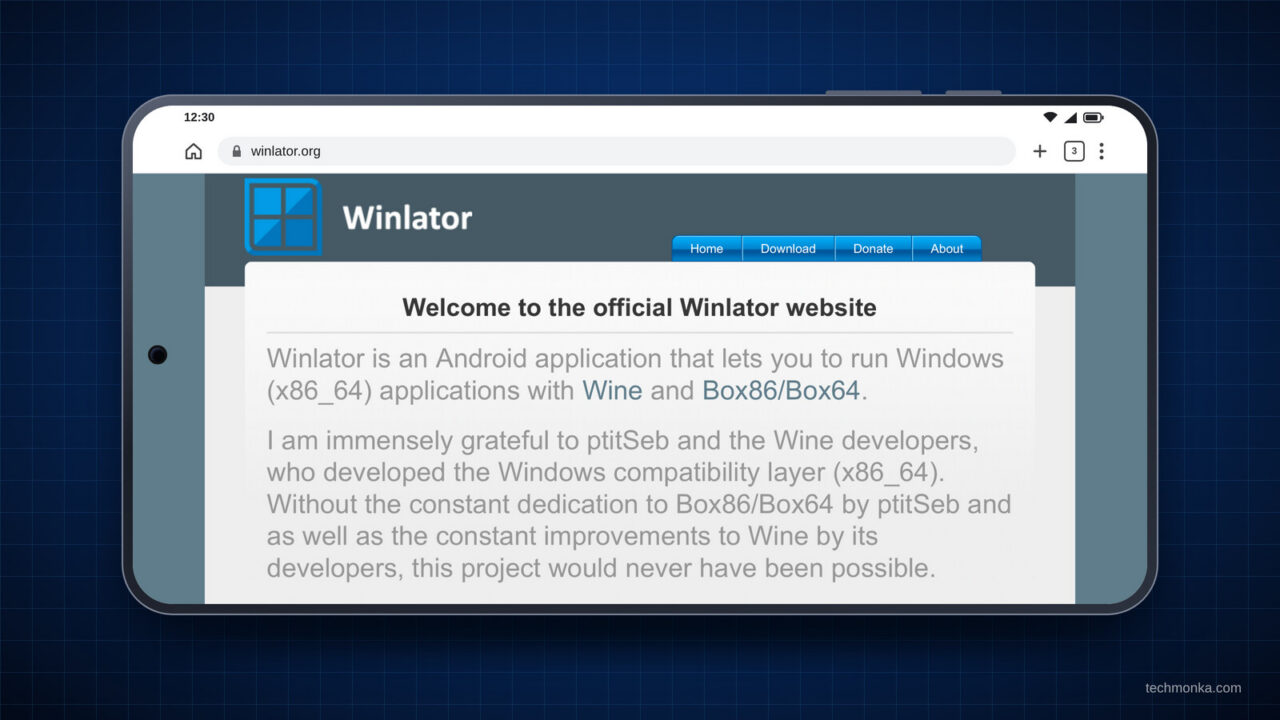
Winlator is a free app that lets many older and lighter Windows games run on an Android phone or tablet. This guide explains how to install it safely, which settings to choose and how to fix the most common problems.
Many Android phones are now more powerful than the gaming PCs of ten years ago. They still cannot run Windows games on their own. That is because Windows games are written for Intel and AMD processors, while almost every Android phone uses an Arm chip that works in a different way.
Winlator closes that gap. It is a free open-source app that creates a small Windows desktop on your phone. You do not need a PC or a cloud subscription to use it, and you do not need to root your device.
Getting started takes a little patience and most people need about half an hour to get their first game running. The steps below are based on Winlator 11.2, the current official version.
Winlator at a glance
| Quick facts | |
| What it is | A free Android app that runs Windows programs and games |
| Developer | brunodev85, under the open-source LGPL-2.1 licence |
| Latest version | Winlator 11.2 (August 2026) |
| Price | Free |
| Official download | The developer’s GitHub page only |
| Root needed? | No |
| Works best on | Phones and tablets with Snapdragon chips |
| Setup time | About 30 minutes for the first game |
How does Winlator work?
Winlator brings together several open-source projects that each handle one part of the job. The most important is Wine, which allows Windows software to run on Linux-based systems like Android. It is the same technology Valve uses in Proton on the Steam Deck.
Because the phone’s processor is different from a PC’s, a tool called Box64 translates the game’s code so the Arm chip can run it. Graphics are translated as well. DXVK and VKD3D convert DirectX into Vulkan, which is the graphics system modern Android phones use, and a driver then passes the result to the phone’s graphics chip. On Snapdragon phones that driver is usually Turnip, while most other phones use Vortek.
All of this translation costs some performance, which is why a game that runs smoothly on an old laptop can still struggle on a much newer phone. The settings you choose therefore make a real difference.
What you need before you start
Winlator does not publish official minimum requirements. As a guide a recent mid-range or flagship phone with at least 8GB of RAM will give you a much better experience than an older or budget model.
The type of chip matters most. Phones with Qualcomm Snapdragon processors get the best results because they can use the Turnip graphics driver. Phones with Samsung Exynos, MediaTek or Google Tensor chips can also run Winlator, although they usually need more trial and error with the settings.
You will need a few gigabytes of free storage for the app, plus enough space for your games. A Bluetooth or USB controller is optional, but it makes most games far more comfortable to play.
You will also need a game that you own in Windows format. DRM-free games from GOG are the easiest place to start, because they run without a separate launcher.
Older and less demanding games released between the late 1990s and the mid-2010s give the most reliable results. Indie and strategy games often run very well, while big new releases are less predictable. Games that use anti-cheat software will not work at all, and that includes most online shooters.
Step 1: Download Winlator from the official page
Winlator is not available on the Google Play Store. The only official place to download it is the developer’s Winlator releases page on GitHub.
- Open the releases page on your phone and find the version marked Latest.
- Scroll down to the Assets section and tap the file that ends in .apk to download it.
If you search for “Winlator download”, you will find many websites with official-looking names. None of them are run by the developer. Some are harmless copies, but there is no way to check whether the app has been changed. It is safest to download it only from GitHub.
You may also come across community versions known as forks, including Winlator Cmod and Winlator Frost. These are made by other developers and can add extra features. They are not official, so this guide uses the original app.
Step 2: Install the app
Because Winlator does not come from the Play Store, Android will ask you to confirm that you want to install it.
- Open the downloaded APK from your notifications or from your Files app.
- If asked, allow your browser or Files app to install unknown apps. On most phones you will find this option under Settings > Apps > Special app access.
- Tap Install. Google Play Protect may warn you that the app is not from the Play Store, and you can choose to install it anyway.
- Open Winlator. On first launch it unpacks its Windows files, which takes a few minutes, so keep the app open until it has finished.
Google has also started asking app developers to verify their identity. The rules began on 30 September 2026 in Brazil, Indonesia, Singapore and Thailand. For now they only apply to apps from participating app stores, so downloading an APK directly from GitHub is not affected.
Google plans to extend the rules worldwide in 2027, and says experienced users will still be able to install apps from unverified developers through an “advanced flow”. You can read more on Google’s developer verification page.
Step 3: Copy your game files to the phone
Winlator automatically links your phone’s Download folder to a drive called D: inside Windows, which makes it the easiest place to keep your games.
- Create a new folder inside Download and name it Games.
- Copy your game’s installer into that folder using a USB cable, a cloud drive or a memory card. A game folder copied from a PC will also work.
- If the game came as a ZIP file, extract it first using your Files app.
Internal storage is usually faster than a microSD card, so games will load more quickly from it. You can add other folders as extra drives later on.
Step 4: Create your first container
A container works like a separate virtual Windows PC with its own C: drive, settings and installed programs. You can create as many as you need, and many players give each demanding game its own container so that changing the settings for one game never affects another.
To create one, tap the + button on the Containers screen. The table below shows sensible settings for a first attempt.
| Setting | What it does | Start with |
| Name | Labels the container | A clear name, for example “Games” |
| Screen Size | Sets the Windows resolution | 1280×720, or 800×600 if games are slow |
| Graphics Driver | Connects games to your phone’s graphics chip | Turnip (Adreno) on Snapdragon phones, or Vortek on other chips |
| DX Wrapper | Translates DirectX graphics | DXVK for games from about 2006 onwards, or WineD3D for older ones |
| Audio Driver | Sends game sound to Android | ALSA, or PulseAudio if there is no sound |
| Show FPS | Shows a frame-rate counter | On while you are adjusting settings |
Tap the tick to save, and Winlator will build the container, which can take a minute. The options in each menu can change slightly between versions, but the names above have stayed the same for several releases.
Step 5: Adjust the advanced settings if needed
Most games will run with the default settings. If yours does not, long-press the container and choose Edit to reach the more detailed options.
The Box64 Preset in the Advanced tab controls how aggressively Winlator translates the game’s code. Performance is the fastest and Stability is the least likely to crash, with Compatibility and Intermediate in between. The developer recommends trying a different preset whenever a game is unstable.
The Win Components tab covers Windows extras like DirectX and Visual C++. Switching a component from built-in to native can sometimes fix a game that crashes as soon as it starts.
Environment Variables hold fixes for specific problems, and the most useful ones are listed in the troubleshooting table below. The Drives tab lets you add other folders as Windows drives, for example a folder on a memory card.
It is best to change one setting at a time and test the game after each change. If you change several things at once, it becomes very hard to tell which one made the difference.
Step 6: Start the container and install the game
- On the Containers screen, tap the three dots next to your container and choose Run. A Windows-style desktop will appear.
- Open the file manager on the desktop and go to the D: drive, where you should see the Games folder you created earlier.
- Double-tap the installer (usually called setup.exe) and follow the steps as you would on a PC. The default location on the C: drive is fine.
- If the game does not need installing, double-tap its .exe file to run it directly.
Some games and programs built on Microsoft .NET need an extra component before they will open. You can install it from Start Menu > System Tools > Installers inside the container by choosing Wine Mono.
Step 7: Create a shortcut for the game
A shortcut places the game on Winlator’s home screen and lets you give it its own settings without changing the rest of the container.
- Inside the container, find the game’s main .exe file. It is usually in C:\Program Files or C:\GOG Games.
- Long-press the file to open the right-click menu and create a shortcut.
- Close the container and open Shortcuts from Winlator’s main menu, where your game will now be listed.
- Tap the game’s menu and open Settings to change options like the resolution, Box64 preset or fullscreen mode for that game only.
The developer recommends launching games from their shortcuts. If an older game appears in a small box in the middle of the screen, turning on Force Fullscreen in the shortcut settings will usually fix it.
Step 8: Set up your controls
Most Windows games are designed for a mouse and keyboard, but Winlator gives you several other ways to play.
A physical controller is the most comfortable option. Pair it with your phone in the usual way and Winlator will present it to games as an Xbox-style controller, which most PC games support. Version 11.2 also fixed a problem with controller input lag, so it is worth updating if you are using an older build.
If you do not have a controller, you can use on-screen buttons instead. While a game is running, press Back or swipe back to open Winlator’s side menu, then choose Input Controls. From there you can pick a ready-made layout like the virtual gamepad or create your own and move the buttons wherever you like.
By default the touchscreen behaves like a laptop trackpad, which works well for strategy games and point-and-click adventures. A Bluetooth keyboard and mouse can also be connected, and they make Winlator feel much more like using a real PC.
Step 9: Launch, test and fine-tune
Start the game from its shortcut and play for a few minutes with the FPS counter switched on. If it runs slowly, work through the changes below in order. The first ones usually give the biggest improvement for the least effort.
- Lower the graphics settings inside the game itself.
- Lower the Screen Size in the container or the shortcut settings.
- Try a faster Box64 preset.
- Switch the DX Wrapper between DXVK and WineD3D.
- Try a different graphics driver.
It also helps to keep an eye on heat. Phones slow themselves down when they get hot, so a game that starts smoothly can become choppy after 20 minutes or so. Removing the case and keeping the phone plugged in during long sessions can help, and some phones have a game mode that improves performance.
Can you run Steam in Winlator?
It is possible, but it is best left until you are comfortable with the basics. Winlator 11.1 added an option to install an older version of the Steam client from the Start Menu, and version 11.2 added a setting that reduces memory use when running games from Steam.
Steam itself is demanding and works best on a powerful phone with plenty of RAM, and many Steam games use DRM or anti-cheat systems that may not work. We recommend getting a DRM-free game running first and trying Steam once you know your settings are reliable.
Troubleshooting: common Winlator problems and fixes
| Problem | What to try |
| “App not installed” error | Remove any older or unofficial version of Winlator, check that you have enough free storage and install the official APK again. |
| Stuck on the first setup screen | Keep the app open with the screen on. If it still fails, clear the app’s storage in Android settings and open it again. |
| Black screen when a game starts | Switch the DX Wrapper between DXVK and WineD3D. If that does not help, try another graphics driver. |
| Game crashes straight away | Try the Stability Box64 preset, then check Win Components for missing DirectX or Visual C++ parts. |
| Older game will not open | Add the environment variable MESA_EXTENSION_MAX_YEAR with the value 2003, which is a fix recommended by the developer. |
| Unity game will not run | Use the Stability preset or add -force-gfx-direct to the shortcut’s launch arguments, as the developer suggests. |
| .NET program will not open | Install Wine Mono from Start Menu > System Tools > Installers. |
| Crackling sound | Increase the audio latency in the ALSA or PulseAudio settings. |
| Game closes when you switch apps | Android is closing Winlator to free up memory. Turn on the foreground service option added in version 11.2. |
| Very low frame rate | Lower the resolution, choose the Performance preset and close other apps. Some games are simply too demanding for a phone. |
| Controller not detected | Reconnect the controller and check its settings under Input Controls. |
| Game appears very small on screen | Turn on Force Fullscreen in the game’s shortcut settings. |
Winlator compared with other ways to play PC games on Android
| Option | Good for | Downsides |
| Winlator | Free and works offline, running games you own on the phone itself | Needs setting up, and performance depends on your phone |
| Other emulator apps, including GameHub and Mobox | Some are easier to set up or include built-in game libraries | Not all are open source, and quality varies |
| Cloud gaming (GeForce Now, Xbox Cloud Gaming) | New and demanding games with no setup | Needs a fast connection and usually a subscription |
| Streaming from your own PC (Steam Link, Moonlight) | Your whole PC library at full quality | Needs a gaming PC switched on at home |
The bottom line
Winlator is one of the most capable free apps available on Android. It is not designed to run the latest blockbusters, but it can work very well with older favourites, indie games and strategy titles.
The most important things are to download it only from the official GitHub page, to start with a simple DRM-free game and to change one setting at a time. We will keep this guide updated as new versions are released.
Frequently asked questions
Is Winlator legal?
Yes. Winlator is free, open-source software built on legal projects like Wine. What matters is the games you use it with, so play games you have bought rather than pirated copies.
Is Winlator safe?
The official app is open source, which means anyone can inspect its code. The main risk comes from unofficial download sites that may have modified the app, so download it only from the developer’s GitHub page.
Do I need to root my phone?
No. Winlator works on a standard Android phone or tablet without root access.
Is Winlator on the Google Play Store?
No. The only official download is the APK file on the developer’s GitHub releases page.
Does Winlator work on Samsung phones?
It depends on the chip inside the phone. Galaxy models with Snapdragon chips work best, while models with Samsung’s own Exynos chips can use the Vortek driver with less consistent results.
Can Winlator run GTA 5 or Cyberpunk 2077?
Large modern games push even the fastest phones to their limits. Some players manage to run them at low settings on top-end Snapdragon phones, but frame rates are usually low. Anything with anti-cheat will not work, and that includes GTA Online.
Does Winlator work on an iPhone?
No. Winlator is only available for Android.
How much storage does Winlator need?
Allow a few gigabytes for the app and its Windows files, plus the full size of every game you plan to install.
Is Winlator better than cloud gaming?
They suit different needs. Winlator is free and works offline, but your phone limits what it can run. Cloud gaming handles new games well but needs a fast connection and usually a subscription.
What is the latest version of Winlator?
Winlator 11.2 was released in August 2026 and is the latest official version at the time of writing. New releases are published on the developer’s GitHub page.

Spotted an error? Tell us. TechMonka is editorially independent; no company mentioned paid for or reviewed this story.

Comments (0)